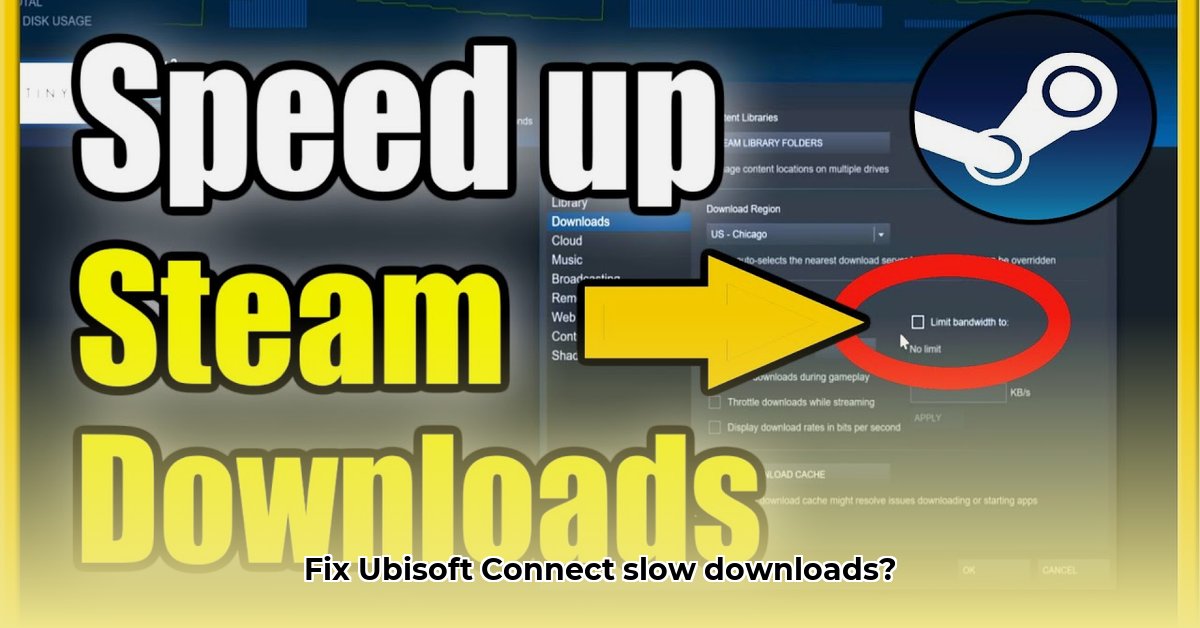
Ubisoft Connect Download Speed Issues: Troubleshooting Your Downloads
Frustrated with slow Ubisoft Connect download speeds? This comprehensive guide provides actionable steps to resolve common issues, boosting your download speeds and getting you back to gaming faster. Remember, slow downloads rarely originate from Ubisoft's servers; the problem typically lies within your network or computer configuration.
1. Internet Speed: The Foundation of Fast Downloads
Before tackling advanced solutions, assess your internet connection's speed. A slow connection is the most common cause of slow downloads. Use a reliable online speed test (like Ookla's Speedtest.net) to measure your download and upload speeds. Compare these results to your internet service provider's (ISP) advertised speeds. A significant discrepancy indicates a potential issue with your ISP that needs addressing. Do you consistently fall short of your promised speed? Contact your ISP immediately.
2. Network Bottlenecks: Identifying and Resolving Congestion
Network congestion is a frequent culprit. Multiple devices competing for bandwidth can significantly slow downloads. Try temporarily disconnecting non-essential devices (smart TVs, phones, tablets) to see if it improves Ubisoft Connect's download performance. This is like clearing a traffic jam—removing some cars from the highway allows smoother flow (faster downloads).
Wired Connection: Consider switching from Wi-Fi to a wired Ethernet connection. Wired connections offer significantly faster and more stable speeds, eliminating potential Wi-Fi interference. It's often the quickest solution.
DNS Optimization: Your DNS server translates website names into IP addresses. A slow DNS server can hinder downloads. Consider switching to a public DNS server like Google Public DNS (8.8.8.8 and 8.8.4.4) or Cloudflare DNS (1.1.1.1 and 1.0.0.1). Detailed instructions on how to change DNS settings are readily available online (search for "[your operating system] change DNS").
Router QoS (Quality of Service): Many routers have QoS settings, allowing you to prioritize certain applications. If your router supports QoS, prioritize Ubisoft Connect to allocate a larger share of your internet bandwidth. Refer to your router's manual for specific configuration steps.
3. Operating System Bandwidth Management: Prioritizing Ubisoft Connect
Your operating system offers tools to manage application bandwidth usage. This allows you to indirectly improve Ubisoft Connect's download speed by prioritizing it or limiting bandwidth usage of other applications.
Windows: Use Task Manager (Ctrl+Shift+Esc). Navigate to the "Processes" or "Details" tab. Identify applications consuming significant bandwidth and consider closing unnecessary ones. While you can't directly limit Ubisoft Connect's bandwidth, reducing consumption by other applications frees up resources for it.
macOS: Use Activity Monitor (found in Applications/Utilities). Similar to Windows Task Manager, Activity Monitor allows you to identify bandwidth-intensive applications and manage their resource usage.
Could prioritizing downloads like this significantly improve your gaming experience? Absolutely!
4. Driver Updates and Software Conflicts: Ensuring Compatibility
Outdated or corrupt network drivers can negatively impact download speeds. Update your network card drivers to the latest versions from the manufacturer's website to ensure optimal performance and compatibility. This relatively small step could lead to surprisingly fast results. Also check for any software conflicts that might interfere with Ubisoft Connect's functionality.
5. Third-Party Download Managers: A Cautious Approach
Third-party download managers offer advanced features, including bandwidth control and pausing/resuming downloads. However, only use reputable, well-known download managers from trusted sources to minimize security risks. Download managers from unknown sources could install malware on your computer.
6. Contacting Support: When All Else Fails
If you've exhausted all troubleshooting steps and still experience slow downloads, contact Ubisoft Support. They may identify server-side issues or offer further assistance. Similarly, contact your ISP if you suspect your internet connection itself is the issue.
Conclusion: A Multi-Step Approach for Optimal Downloads
Optimizing Ubisoft Connect download speeds often involves a systematic approach. By working through these steps, you'll likely identify the cause of the slow downloads and improve speeds significantly. Remember that patience and persistence are key in successfully troubleshooting these issues.
⭐⭐⭐⭐☆ (4.8)
Download via Link 1
Download via Link 2
Last updated: Friday, May 02, 2025